
It’s interesting that Windows Autopilot is seen as a replacement for bare metal imaging solutions. In reality, the two are complementary. Sure, there are great use cases for using an OS images preloaded on computers by the OEMs (whether that’s a standard OEM image, a paid OEM “cleaner” image option, or a paid “custom” image option), but there are plenty of times where you still want or need a bare metal imaging solution:
- Hardware failures. If a hard drive fails and is replaced (or with some OEMs, when a motherboard is replaced), you need a mechanism to get an OS back onto the computer.
- Malware infestations. If something infects the computer, you can no longer trust what is on the device; it needs to be wiped clean and start over.
- Break/fix. Perhaps doing an OS reset is fine in many situations, but it’s not a fast process and is not always reliable either – assuming customers do everything right (e.g. getting the right drivers injected into Windows RE) it can still fail and require reimaging to fix.
- You don’t like or can’t use the OS that ships on the device. This could be unwanted “bloatware” (there’s not a consensus of what constitutes bloatware; in some cases, it could be things like OEM utilities), the OEM shipping newer versions of Windows 11 than what you are using (e.g. they ship 25H2 before you’re ready for it), the device having a different SKU than what you want (e.g. ships with Home and you need Education, or with Pro and you want Enterprise LTSC), incorrect preloaded language packs, etc.
So, at the end of the day there are plenty of scenarios (some forced, some by choice) where you start off with a bare metal deployment and then want to finish with Windows Autopilot for the final provisioning steps in the new OS. We’ve talked with lots of customers over the years who are doing exactly this (some with MDT who are now looking for a good replacement, some with ConfigMgr who don’t want to keep it around just for OSD after they’ve moved all the other device management workloads to the cloud).
So how exactly can we help with preparing a device for Windows Autopilot? Well, first of all we can use a task sequence that deploys an OS image and drivers (potentially from the cloud) and then completes while still in Windows PE, without using an unattend.xml answer file. In this case, the device will boot to OOBE and go through the normal Windows Autopilot flow.
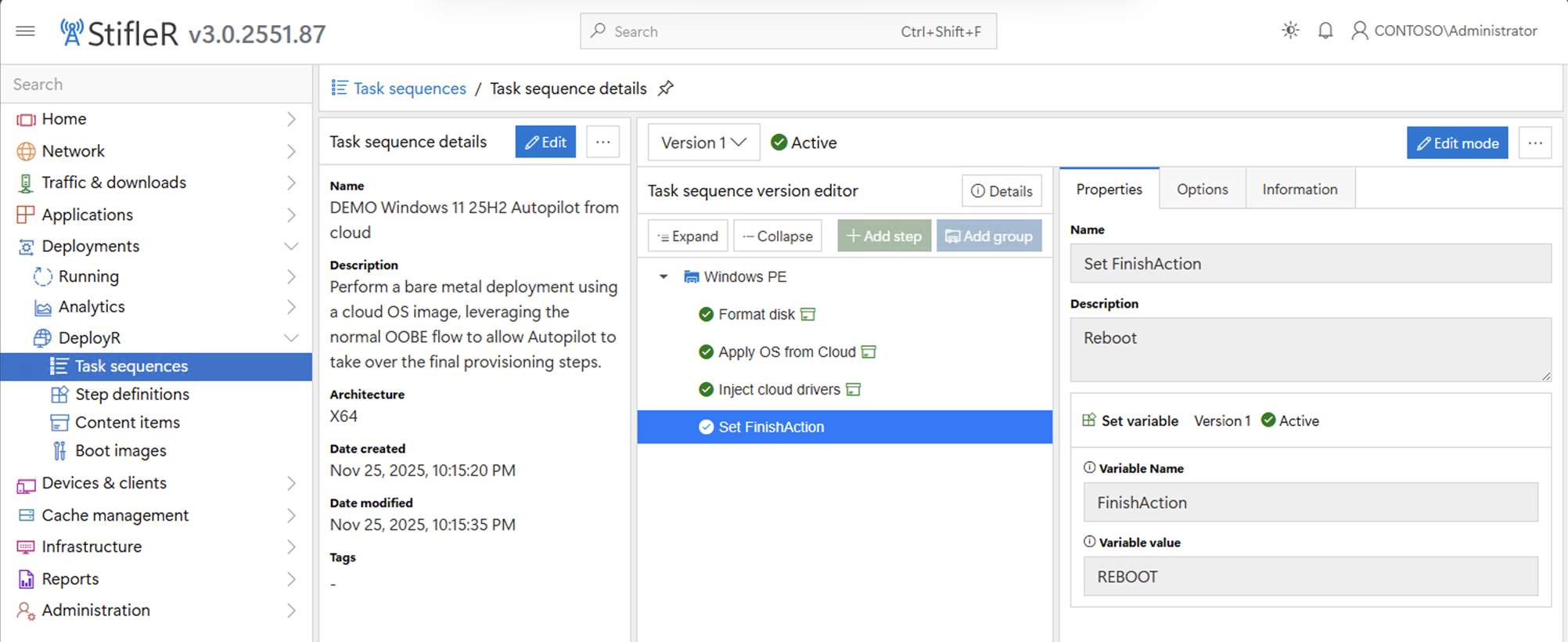
What if you are using Windows Autopilot (v1 or v2) and need to register the device? We can do that too, and most importantly do it securely. If we add an additional step to the task sequence, we can see the available options:
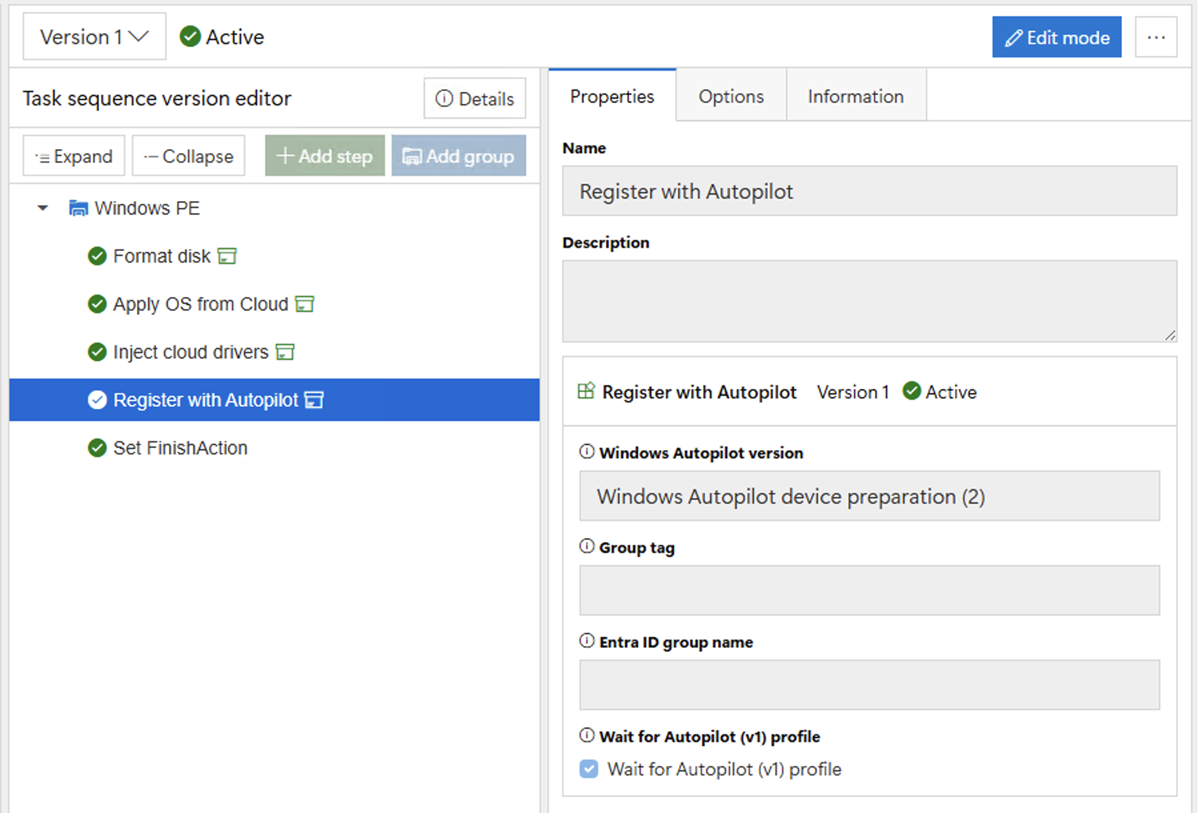
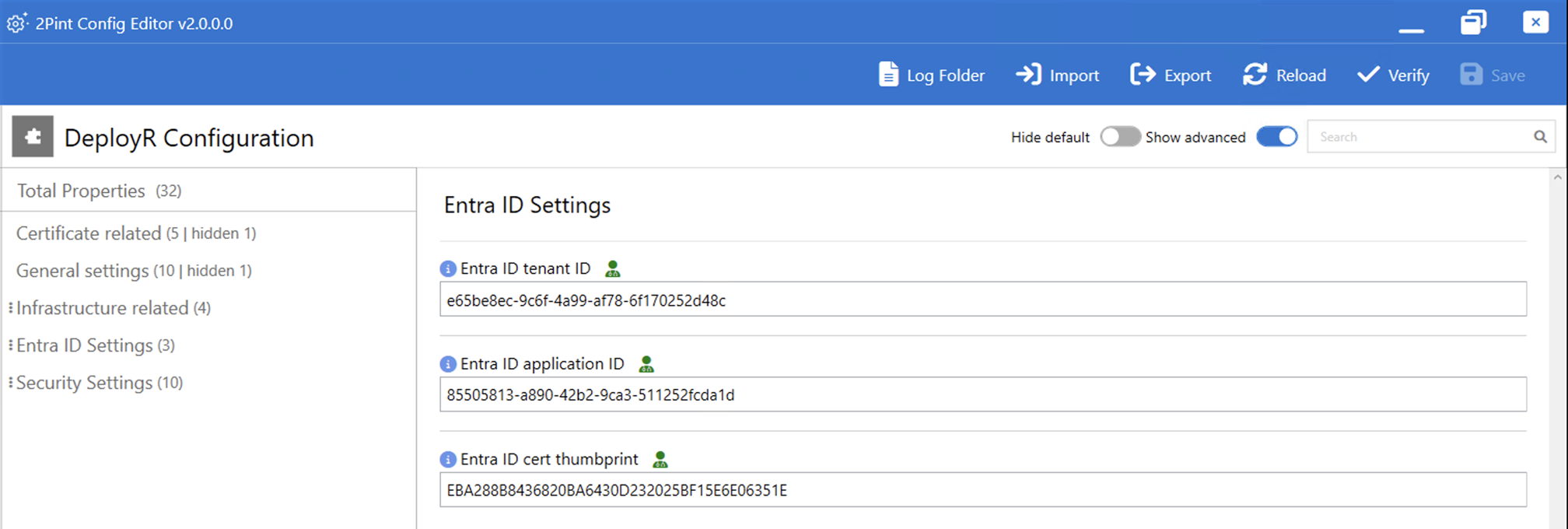
Notice that we’re doing registration for Autopilot v2 in this case, which means creating a corporate device identifier, and this is being done while still in Windows PE (easy enough, since the manufacturer, model, and serial number are all that’s required for this). How does this know what tenant and how does it authenticate with Entra ID? Those details are kept securely on the DeployR server; the client asks the DeployR server to do this on its behalf. That’s really the only safe way to do this – passing app IDs, app secrets, app certs, etc. around the network is dangerous because they will leak, and those app IDs need a lot of rights to do the necessary registration tasks.
While this still means you need an app ID and a certificate to secure it, those details never leave the DeployR server:
What about Windows Autopilot v1? Well, that gets a little more interesting, but only because it can’t be done while in Windows PE. In order to get the needed hardware details to get a good hardware hash from the device, it needs to boot into the new OS. We can do that using Audit mode:
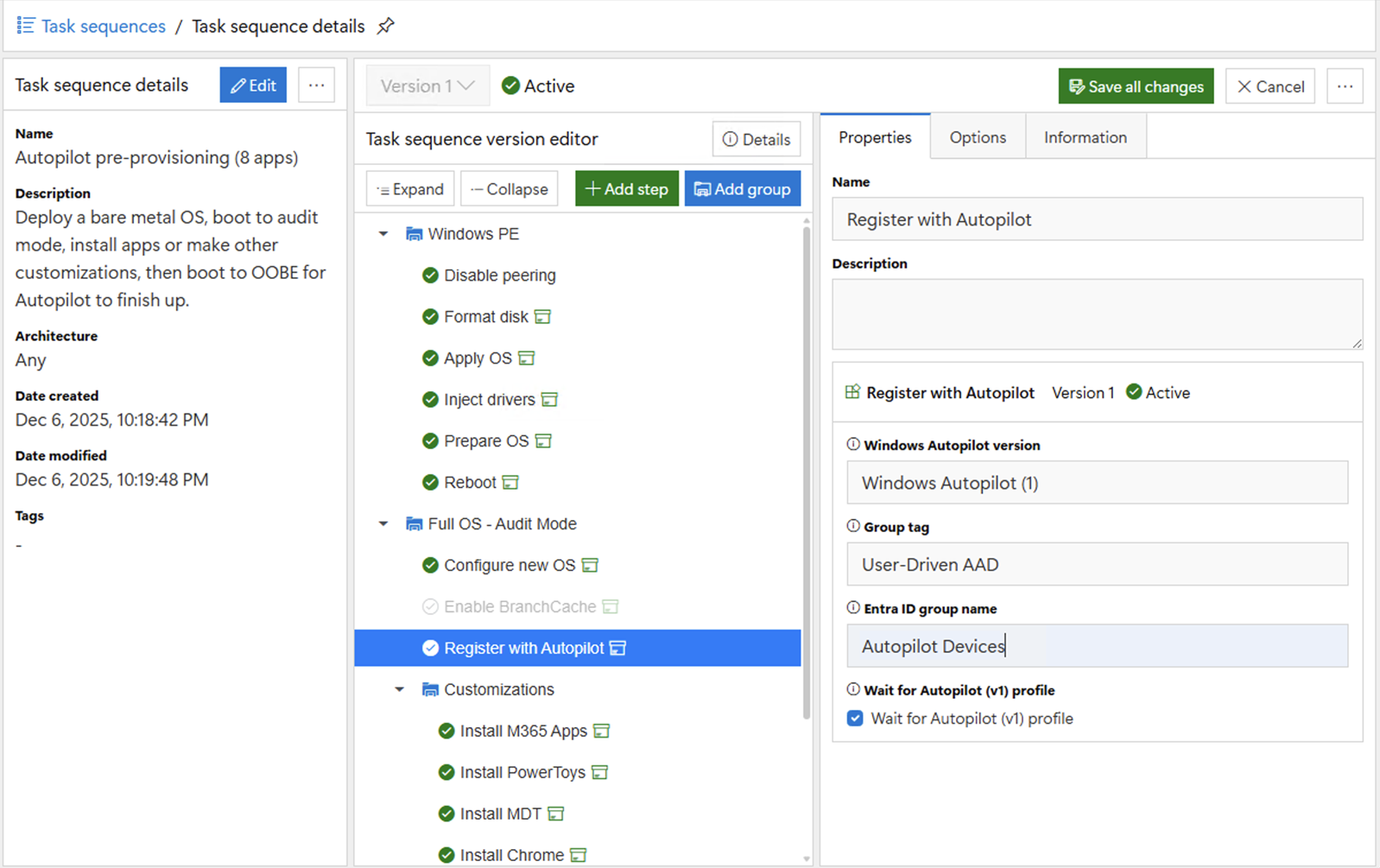
In this case, we specify that we want to register with Windows Autopilot v1, and let you specify (optionally) both a group tag and an Entra ID group name. So we can then grab the hardware hash and pass it to the DeployR server. It can then add the device to Autopilot with any specified group tag, add it to the specified Entra ID group, and then wait until the device has an Autopilot profile applied. That can take a while, usually less than 15 minutes, but the task sequence won’t continue until it’s done.
Notice that we can also take advantage of the fact that we’re already in the full OS to do some customizations. In this case, we chose to install eight apps (using the same .intunewin files that were used in Intune, described in my previous blog about DeployR apps). Once the task sequence completes while in Audit mode, the computer will then reboot to OOBE (or you could tell the device to shut down) and would continue then with a normal Autopilot v1 enrollment and provisioning process.
Combine that with the "Disable Shift-F10" and “Require Internet” options mentioned in the DeployR operating systems post and you have a reasonably secure way to provision the device. And for the end user, the process will be quick because the apps are already there; Intune can detect that and not download them again.
We have talked with customers who do a bare metal deployment, followed by Autopilot v1 pre-provisioning, followed by a user-driven Windows Autopilot deployment. There is a better way, leveraging a task sequence that automates the first two pieces – DeployR can take care of that for you. Also, if you want to do pre-provisioning with Autopilot v2, the task sequence shown above can do that too.
We can do Entra ID join separately too
Separately from Windows Autopilot, we can also do an Entra ID join using a “Join Entra ID” step. This leverages a provisioning package (PPKG) that contains the bulk join details needed for that. The Entra ID join will also cause an automatic MDM enrollment into Intune, to ensure that the device is managed. But it would result in the device effectively being a shared device since there would be no primary user assigned. To help with that, we have another “Set Intune device owner” step that allows you to specify the user’s UPN (which can be overridden via a task sequence variable):
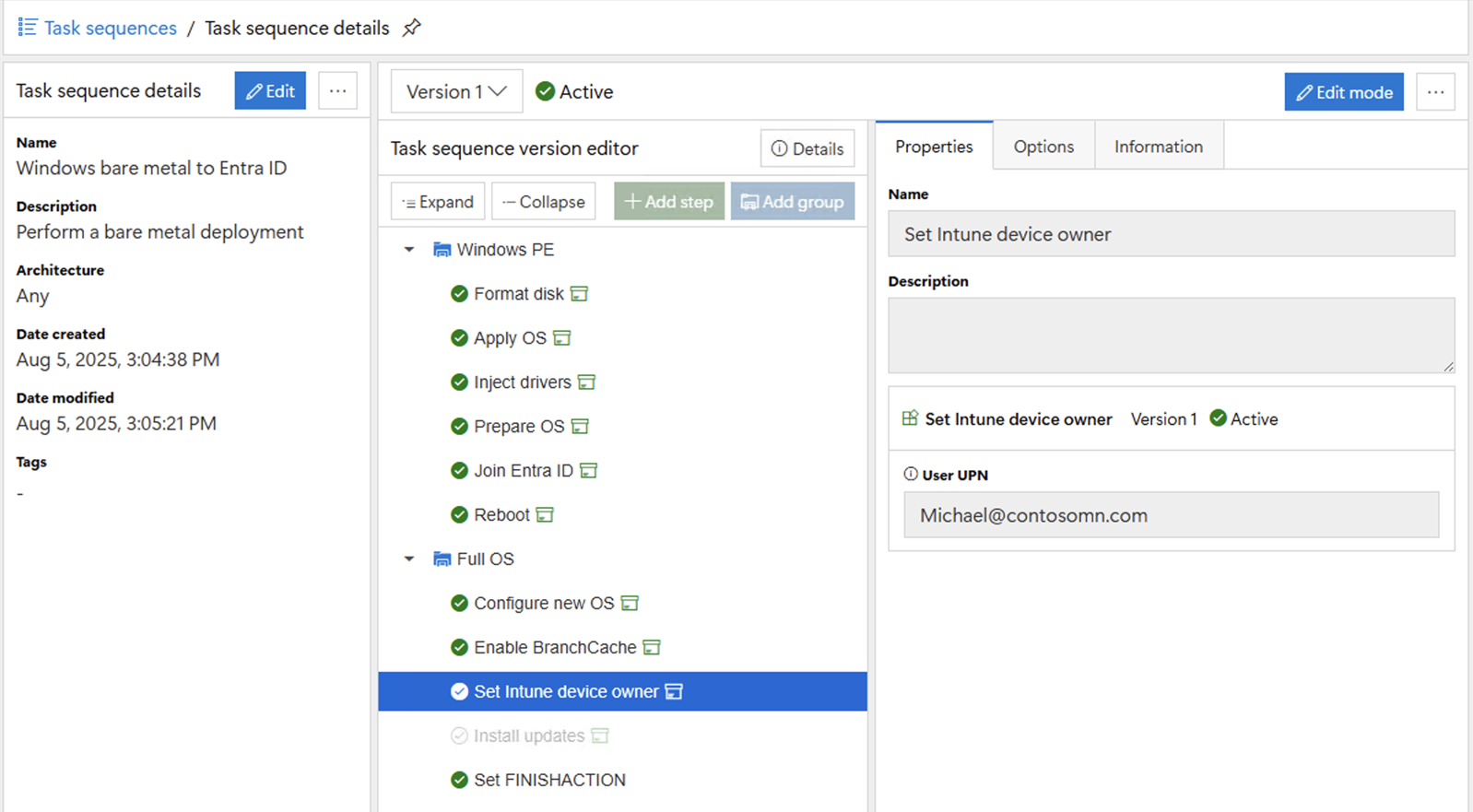
The “Join Entra ID” step runs in Windows PE to inject the PPKG offline into the new OS, so it gets processed automatically when the OS boots for the first time.
There is one manual step that needs to be performed on the DeployR server to generate the PPKG file. We provide a simple PowerShell script that uses Dr. Nestori Syynimaa’s (@DrAzureAD) AADInternals module to easily generate the bulk enrollment token (since the Configuration Designer tool provided by Microsoft via the ADK or the Microsoft Store tends to be flaky and fails often). This token is only good for 180 days, so you have to repeat this process a couple of times per year, and there’s no way to avoid sending the resulting PPKG file to the device itself (there is no “offline domain join for Entra ID” process that can avoid that), so it is slightly less secure than the Windows Autopilot flows where it’s the user authenticating with Entra ID and Intune – while DeployR keeps the PPKG file secure, it can’t prevent the file from being swiped from a computer that is being deployed (e.g. grab it when the computer is rebooting from Windows PE to the new OS).
Top Posts
2Pint Software blog roundup - early summer 2026 edition
2Pint Software blog roundup - spring 2026 edition
2Pint Software welcomes Nathan Ziehnert to the team!

By David Meurer
By David Meurer

By Andreas Hammarskjöld

By Andreas Hammarskjöld